Turn on the Developer tab in Excel if you want to create a macro, export and import XML files or insert controls. To turn on the Developter tab, execute the following steps.
1. Right click anywhere on the ribbon, and then click Customize the Ribbon.
2. Under Customize the Ribbon, on the right side of the dialog box, select Main tabs (if necessary).
3. Check the Developer check box.
4. Click OK.
You can find the Developer tab next to the View tab.
.
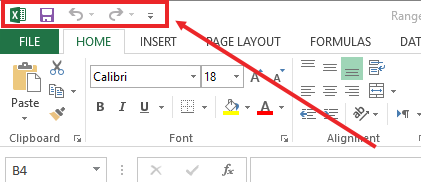
Quick Access Toolbar is a bar at the upper most left side of the application, see below
If you use more commands in Excel sheet, then you can adjust your frequently using commands in Quick Access Tool Bar, by default, MS Excel has three Commands; Save, Undo and Redo.
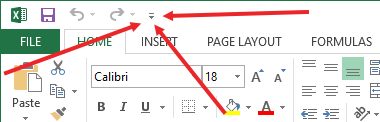
To add more of your frequesntly using command just click the Down arrow button on right of the Quick Access Toolbar, See below
Click here and select more commands a new window will appear as shown below.
1. From left pane, select Quick Access Toolbar, on right you will see two column
2. Left you have many more commands that you can add to QA-Toolbar.
3. Right column has some commands that you currently have in your QUICK ACCESS TOOLBAR.
Adding Command
Simple click on any command that you want to add from left and then click ADD button in center, you see that command will be shown in right column. click OK at the end
Removing command
and same like above you can delete command from Quick Access Toolbar Simply by removing from right column.
All above working about how to customize Quick Access Toolbar, you can watch in Video.
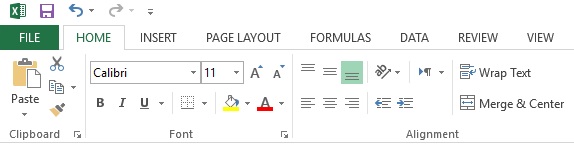
When you open the EXCEL Application, default selected tab will be HOME. Hoem is the 2nd one tab, (File, Home, Insert, Page layout, Formula, Data, Review, View, Developer and etc), Below is the picture of Ribbon (tabs)
File
File Tab contain commands related to opening file, saving file, printing file, creating new file, Sharing file and setting of MS Excell.
Home
Home tab related to the formation of text/paragraphs i.e. font, size, colour, align, bold, italic, Copy, cut and pasting like functions. Ths is the most using tab in MS Excel.
Insert
When you want to add any picture, table, shape, graph, Charts, Timeline, links, hyper links and etc, click INSERT tab that have all these function, Simply when anything to be inserted, this tab is used. below you can see all these function in INSERET tab.
Page layout
page layout deals with formation of whole page (Sheet) of Excel, like Theme, its colour, Page margin, page size, page orientation, printable area, page brak, pge background, Page width, page hieght and many other function about page.
Formula
This tab contains all the functional feature, like sum, average, lookup, logical financial and many other mathematical and trignometric funtions.
many other tabs in this ribbon are more available liek data, review, view, developers. but those tabs are less used in routine funtions.
Show/Hide Ribbon
Many users like to hide the ribbon, they show it when ever they need to use. Mostly Those users hide the ribbon who know and work with hotkey or shorcut key. hiding the ribbon increases the working area of the sheet. but lets see how to hide and show the ribbon. see the below picture
See the top right corner, your will see an arrow up button. clicking on it shows three option
1. Auto hide Ribbon:
this option automatically hide the ribbon and when ever your mouse over the top are, it appears and mouse down will again disappears it.
2. Show tabs
This optiuon will show only tabs name like File, Home, Insert, etc.... but not the inner or subfunctions.
3. Show tabs and Command:
this option will show all the tabs and its subfunction opotions. this option is used and default selected by MS Excel Users.
Add new tabs in Ribbon
go to file > Option > Customize Ribbon
in left side all the tabs are location and in right column all the shown tabs are listed, you can deleted currents tabe from right and you can add more tabs from left.