DW Faisalabad New Version

DW Faisalabad New Version
Please Jump to New Version
Showing posts with label Loop. Show all posts

Wednesday, 12 July 2017

Knapsack Problem

Below we will look at a program in Excel VBA that solves a small instance of a knapsack problem.

Definition: Given a set of items, each with a weight and a value, determine the items to include in a collection so that the total value is as large as possible and the total weight is less than a given limit. It derives its name from the problem faced by someone who is constrained by a fixed-size knapsack and must fill it with the most useful items.

Example: 5 items with weights, values and limit as given.


In Excel this problem looks as follows:


1. First, we declare five variables of type Double with names limit, weight, value, totalWeight and maximumValue.

Dim limit As Double, weight As Double, value As Double, totalWeight As Double, maximumValue As Double
2. Next, we declare five variables of type Integer with with names i, j, k, l, m.

Dim i, j, k, l, m As Integer
3. We initialize two variables. We initialize the variable limit with the value of cell D6. We initialize the variable maximumValue with value 0.

limit = Range("D6").value
maximumValue = 0
4. Next, we check each possible solution. We can either include an item (1) or leave it out (0). We start 5 For Next loops. One for each item.

For i = 0 To 1
    For j = 0 To 1
        For k = 0 To 1
            For l = 0 To 1
                For m = 0 To 1
5. We calculate the weight and the value of a possible solution.

weight = 12 * i + 2 * j + 1 * k + 1 * l + 4 * m
value = 4 * i + 2 * j + 2 * k + 1 * l + 10 * m
6. Only if value is higher than maximumValue and weight is lower than limit, we've found a new better solution.

If value > maximumValue And weight <= limit Then
7. If  true, we write the new solution to row 4, weight to totalWeight and value to maximumValue.

Range("B4").value = i
Range("C4").value = j
Range("D4").value = k
Range("E4").value = l
Range("F4").value = m
totalWeight = weight
maximumValue = value
8. Don't forget to close the If statement.

End If
9. Don't forget to close the 5 For Next loops.

                Next m
            Next l
        Next k
    Next j
Next i
Excel VBA checks each possible solution this way and as a result the optimal solution will appear in row 4. Remember, 1 means we include an item, 0 means we leave it out.

10. Finally, write totalWeight and maximumValue of the optimal solution to respectively cell B6 and B8.

Range("B6").value = totalWeight
Range("B8").value = maximumValue
11. Test the program.

Result:


Conclusion: it's optimal to include the last four items with a maximum value of 15. This solution with a total weight of 2 + 1 + 1 + 4 = 8 does not exceed the limit of 15.

Note: by making the weights and values variable you can solve any knapsack problem of this size (see downloadable Excel file)..
Read More »

Complex Calculations


Below we will look at a program in Excel VBA that calculates any term Tk and summation of terms up to N.


Explanation: the user has the option to enter "All" or "Odd", to respectively calculate the sum of the first N terms of the series or the sum of only the odd terms up to N.

Place a command button on your worksheet and add the following code lines:

1. First, we declare four variables of type Integer and one variable of type String.

Dim i, term, N, stepSize As Integer
Dim sumType As String
2. Second, we initialize the variables.

i = 0
N = Range("C2").Value
sumType = Range("C3").Value
3. Empty the fields.

Range("A8:B1000").Value = ""
Range("C6").Value = ""
4. Determine stepSize.

Select Case sumType
    Case Is = "All"
        stepSize = 1
    Case Is = "Odd"
        stepSize = 2
    Case Else
        MsgBox "Enter a valid expression in cell C3"
        End
End Select
Tip: go through our Select Case program to learn more about the Select Case structure.

5. Do the calculations.

For term = 1 To N Step stepSize
    Cells(8 + i, 1).Value = term
    Cells(8 + i, 2).Value = (term ^ 2 + (6 * term) + 1) / ((9 * term) + 7)

    Range("C6").Value = Range("C6").Value + Cells(8 + i, 2).Value

    i = i + 1
Next term
Explanation: we use the Step keyword to specify the increment (1 for "All" and 2 for "Odd") for the counter variable of the loop.

Result:

.
Read More »

Remove Duplicates

Below we will look at a program in Excel VBA that removes duplicates.

Situation:

In column A we have 10 numbers. We want to remove the duplicates from these numbers and place the unique numbers in column B.


1. First, we declare four variables. toAdd of type Boolean, uniqueNumbers of type Integer, i of type Integer, and j of type Integer.

Dim toAdd As Boolean, uniqueNumbers As Integer, i As Integer, j As Integer
2. Next, we write the first number of column A to column B since the first number is always 'unique'.

Cells(1, 2).Value = Cells(1, 1).Value
3. We initialize two variables. We've just added one number to column B, so we initialize uniqueNumbers with the value 1. We set toAdd to True assuming that the next number needs to be added as well (this is not necessarily true of course).

uniqueNumbers = 1
toAdd = True
We need to determine whether the second number is 'unique' or not. This can be done in a very easy way. Only if the number is not already in column B, the second number needs to be added to column B.

4. We also need to check this for the third number, fourth number, and so on. We start a For Next loop for this.

For i = 2 To 10
5. Now comes the most important part of the program. If the second number is equal to one of the numbers in column B (so far we only have one unique number), we set toAdd to False because in this case we don't want to add this number! (it is not 'unique'). At the moment uniqueNumbers is still equal to 1, but uniqueNumbers can be a whole list. To check this whole list, we need another For Next loop. Again: if the number we want to add is equal to one of the numbers in this list, toAdd will be set to False and the number will not be added. Add the following code lines:

For j = 1 To uniqueNumbers
    If Cells(i, 1).Value = Cells(j, 2).Value Then
        toAdd = False
    End If
Next j
6. Only if toAdd is still True and not set to False, Excel VBA needs to add the number to column B. At the same time, we increment uniqueNumbers by 1 because we have one unique number more now. The following code lines get the job done:
If toAdd = True Then
    Cells(uniqueNumbers + 1, 2).Value = Cells(i, 1).Value
    uniqueNumbers = uniqueNumbers + 1
End If
7. Finally, we set toAdd to True assuming the next number (third number) needs to be added. Again this is not necessarily true.

toAdd = True
8. Don't forget to close the loop.

Next i
9. Place your macro in a command button and test it.

Result:

.
Read More »

Randomly Sort Data

Below we will look at a program in Excel VBA that randomly sorts data (in this example randomly sorts names).

Situation:


1. First, we declare four variables. One variable of type String we call TempString, one variable of type Integer we call TempInteger, one variable of type Integer we call i, and one variable of type Integer we call j.

Dim tempString As String, tempInteger As Integer, i As Integer, j As Integer
2. We write 5 random numbers to column B (one for each name). We use the worksheet function RandBetween for this.

For i = 1 To 5
    Cells(i, 2).Value = WorksheetFunction.RandBetween(0, 1000)
Next i
Result so far:


We will use the numbers next to each name to sort the names. The name with the lowest number first, the name with the second lowest number, second, etc.

3. We start a Double Loop.

For i = 1 To 5
    For j = i + 1 To 5
4. Add the following code line:

If Cells(j, 2).Value < Cells(i, 2).Value Then
Example: for i = 1 and j = 2, Wendy and Richard are compared. Because Richard has a lower number, we swap Wendy and Richard. Richard is at the first position now. For i = 1 and j = 3, Richard and Joost are compared. Joost has a higher number so nothing happens. This way, Excel VBA gets the name with the lowest number at the first position. For i = 2, Excel VBA gets the name with the second lowest number at the second position, etc.

5. If true, we swap the names.
tempString = Cells(i, 1).Value
Cells(i, 1).Value = Cells(j, 1).Value
Cells(j, 1).Value = tempString
6. And we swap the numbers.
tempInteger = Cells(i, 2).Value
Cells(i, 2).Value = Cells(j, 2).Value
Cells(j, 2).Value = tempInteger
7. Don't forget to close the If statement.

End If
8. Don't forget to close the two loops.

    Next j
Next i
9. Test the program.

Result:


Note: you can add a line which deletes the numbers in column B. It's even nicer to place the numbers of each name in an array, so no numbers are placed on your worksheet. However, for illustrative purpose we've chosen to place the values on the sheet..
Read More »

Sort Numbers

Below we will look at a program in Excel VBA that sorts numbers.

Situation:


Place a command button on your worksheet and add the following code lines:

1. First, we declare three variables of type Integer and one Range object.

Dim i As Integer, j As Integer, temp As Integer, rng As Range
2. We initialize the Range object rng with the numbers in column A. We use the CurrentRegion property for this. CurrentRegion is useful when we don't know the exact boundaries of a range in advance (we want this program to work for 9 numbers but also for 90 numbers).

Set rng = Range("A1").CurrentRegion
3. We start two For Next loops.

For i = 1 To rng.Count
    For j = i + 1 To rng.Count
Explanation: rng.Count equals 9, so the first two code lines reduce to For i = 1 to 9 and For j = i + 1 to 9. For i = 1, j = 2, 3, ... , 8 and 9 are checked.

4. To sort the numbers properly, we compare the first number with the next number. If the next number is smaller, we swap the numbers. Add the following If Then statement.

If rng.Cells(j) < rng.Cells(i) Then

End If
If the above statement is true, we swap the numbers.

For example: for i = 1 and j = 2, the numbers 2 and 10 are being compared. The above statement is not true. Thus, no need to swap the numbers. Excel VBA increments j by 1 and repeats the code lines for i = 1 and j = 3. You can easily see that 5 is larger than 2, so still no need to swap the numbers. We get the same result for j = 4, j = 5 and j = 6. When we arrive at j = 7, the above statement is true since 1 is smaller than 2.

5. We swap the numbers. We temporarily store one number to temp, so that Excel VBA can swap the numbers properly. Add the following code lines in the If statement.

'swap numbers
temp = rng.Cells(i)
rng.Cells(i) = rng.Cells(j)
rng.Cells(j) = temp
6. We close the second For Next loop (Outside the If statement).

Next j
For i = 1 and j = 7, Excel VBA swapped the numbers. That means we get 1 at the first position and 2 at position 7. Now that we have 1 at the first position, we will compare this value with 5 (for j = 8) and 4 (for j = 9). There is no need to swap the numbers (1 is the smallest number). This way Excel VBA gets (for i = 1) the smallest number at the first position. To get the second smallest number at the second position, Excel VBA repeats the exact same steps for i = 2. To get the third smallest number at the third position, Excel VBA repeats the exact same steps for i = 3, etc.

7. Close the first For Next loop (Outside the If statement).

Next i
8. Test your program.

Result:

.
Read More »

Create a Pattern

Below we will look at a program in Excel VBA that creates a pattern.

Situation:


Place a command button on your worksheet and add the following code lines:

1. First, we declare two variables of type Integer. One named i and one named j.

Dim i As Integer, j As Integer
2. Second, we add two For Next loops.

For i = 1 To 5 Step 2
    For j = 1 To 5 Step 2
3. Next, we add the line which changes the background color of the cells to light gray.

Cells(i, j).Interior.ColorIndex = 15
Note: instead of ColorIndex number 15 (light gray), you can use any ColorIndex number.

4. Close the two For Next loops.

    Next j
Next i
5. Test the program.

Result so far.


For example, for i = 1 and j = 1, Excel VBA colors Cells(1,1), for i = 1 and j = 3 (Step 2), Excel VBA colors Cells(1,3), for i = 1 and j = 5, Excel VBA colors Cells(1,5), for i = 3 (Step 2) and j = 1, Excel VBA colors Cells(3,1), etc.

6. We are almost there. The only thing we need to do, is color the cells which are offset by 1 row below and 1 column to the right of the cells already colored. Add the following code line to the loop.

Cells(i, j).Offset(1, 1).Interior.ColorIndex = 15
7. Test the program.

Result:

.
Read More »

Step Keyword

You can use the Step keyword in Excel VBA to specify a different increment for the counter variable of a loop.

1. Place a command button on your worksheet and add the following code lines:

Dim i As Integer

For i = 1 To 6 Step 2
    Cells(i, 1).Value = 100
Next i
Result when you click the command button on the sheet:


Explanation: The code lines between For and Next will be executed three times. For i = 1, Excel VBA enters the value 100 into the cell at the intersection of row 1 and column 1. When Excel VBA reaches Next i, it increases i with 2 and jumps back to the For statement. For i = 3, Excel VBA enters the value 100 into the cell at the intersection of row 3 and column 1, etc.

2. Place a command button on your worksheet and add the following code lines:

Dim j As Integer

For j = 8 To 3 Step -1
    Cells(6, j).Value = 50
Next j
Result when you click the command button on the sheet:


Explanation: The code lines between For and Next will be executed six times. For j = 8, Excel VBA enters the value 50 into the cell at the intersection of row 6 and column 8. When Excel VBA reaches Next j, it decreases j with 1 and jumps back to the For statement. For j = 7, Excel VBA enters the value 50 into the cell at the intersection of row 6 and column 7, etc..
Read More »

Do Until Loop

Although not used very often on this site, you might find yourself in a situation where you want to use the Do Until Loop in Excel VBA. Code placed between Do Until and Loop will be repeated until the part after Do Until is true.

Place a command button on your worksheet and add the following code lines:

Dim i As Integer
i = 1

Do Until i > 6
    Cells(i, 1).Value = 20
    i = i + 1
Loop


Result when you click the command button on the sheet:


Explanation: until i is higher than 6, Excel VBA places the value 20 into the cell at the intersection of row i and column 1 and increments i by 1. As a result, the value 20 will be placed into column A six times (not seven because Excel VBA stops when i equals 7)..
Read More »

Loop through Entire Column

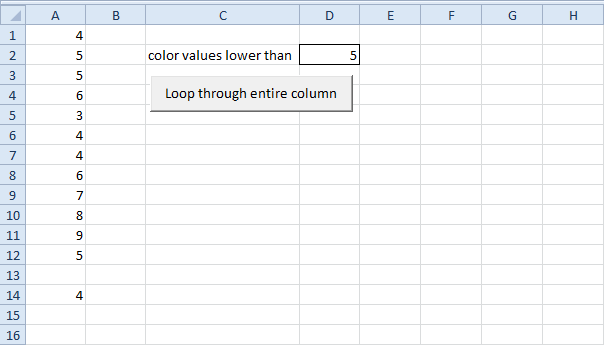
Below we will look at a program in Excel VBA that loops through the entire first column and colors all values that are lower than a certain value.


Place a command button on your worksheet and add the following code lines:

1. First, declare a variable called i of type Long. We use a variable of type Long here because Long variables have larger capacity than Integer variables.

Dim i As Long
2. Next, add the code line which changes the font color of all the cells in column A to black.

Columns(1).Font.Color = vbBlack
3. Add the loop.

For i = 1 To Rows.Count

Next i
Note: worksheets can have up to 65,536 rows in Excel 2003 and up to 1,048,576 rows in Excel 2007 or later. No matter what version you are using, the code line above loops through all rows (downloadable Excel file is in Excel 97-2003 format).

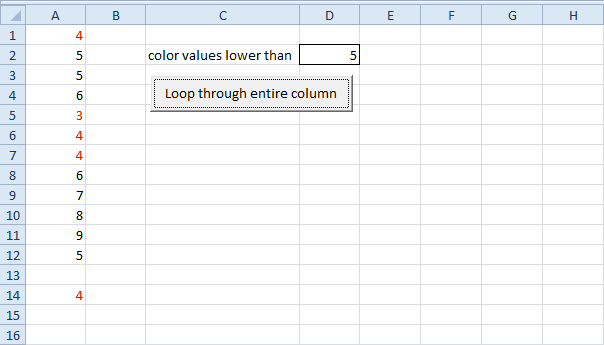
4. Next, we color all values that are lower than the value entered into cell D2. Empty cells are ignored. Add the following code lines to the loop.

If Cells(i, 1).Value < Range("D2").Value And Not IsEmpty(Cells(i, 1).Value) Then
    Cells(i, 1).Font.Color = vbRed
End If
Result when you click the command button on the sheet (this may take a while):


.


Read More »

Loop through Defined Range

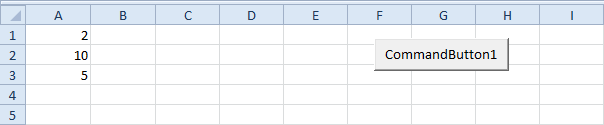
Below we will look at a program that loops through a defined range. For example, when we want to square the numbers in Range("A1:A3"). Did you know you can also loop through a dynamic range?

Situation:


Place a command button on your worksheet and add the following code lines:

1. First, we declare two Range objects. We call the Range objects rng and cell.

Dim rng As Range, cell As Range
2. We initialize the Range object rng with Range("A1:A3").

Set rng = Range("A1:A3")
3. Add the For Each Next loop.

For Each cell In rng

Next cell
Note: rng and cell are randomly chosen here, you can use any names. Remember to refer to these names in the rest of your code.

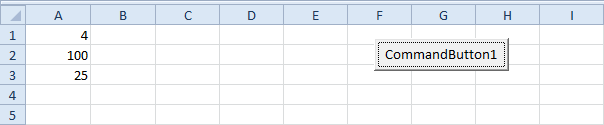
4. Next, we square each cell in this range. To achieve this, add the following code line to the loop:

cell.Value = cell.Value * cell.Value
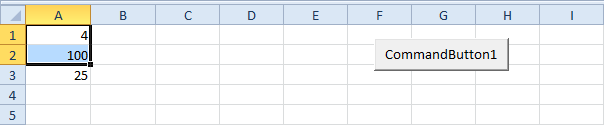
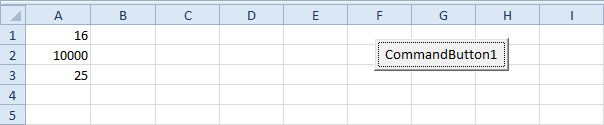
Result when you click the command button on the sheet:


5. If you want to check each cell in a randomly selected range, simply replace:

Set rng = Range("A1:A3")
with:

Set rng = Selection
6. Now, for example select Range("A1:A2").


Result when you click the command button on the sheet:

.
Read More »

Loop

Single Loop  |  Double Loop  |  Triple Loop  |  Do While Loop

Looping is one of the most powerful programming techniques. A loop in Excel VBA enables you to loop through a range of cells with just a few codes lines.

Single Loop

You can use a single loop to loop through a one-dimensional range of cells.

Place a command button on your worksheet and add the following code lines:

Dim i As Integer

For i = 1 To 6
    Cells(i, 1).Value = 100
Next i


Result when you click the command button on the sheet:


Explanation: The code lines between For and Next will be executed six times. For i = 1, Excel VBA enters the value 100 into the cell at the intersection of row 1 and column 1. When Excel VBA reaches Next i, it increases i with 1 and jumps back to the For statement. For i = 2, Excel VBA enters the value 100 into the cell at the intersection of row 2 and column 1, etc.

Note: it is good practice to always indent (tab) the code between the words For and Next. This makes your code easier to read.

Double Loop

You can use a double loop to loop through a two-dimensional range of cells.

Place a command button on your worksheet and add the following code lines:

Dim i As Integer, j As Integer

For i = 1 To 6
    For j = 1 To 2
        Cells(i, j).Value = 100
    Next j
Next i
Result when you click the command button on the sheet:


Explanation: For i = 1 and j = 1, Excel VBA enters the value 100 into the cell at the intersection of row 1 and column 1. When Excel VBA reaches Next j, it increases j with 1 and jumps back to the For j statement. For i = 1 and j = 2, Excel VBA enters the value 100 into the cell at the intersection of row 1 and column 2. Next, Excel VBA ignores Next j because j only runs from 1 to 2. When Excel VBA reaches Next i, it increases i with 1 and jumps back to the For i statement. For i = 2 and j = 1, Excel VBA enters the value 100 into the cell at the intersection of row 2 and column 1, etc.

Triple Loop

You can use a triple loop to loop through two-dimensional ranges on multiple Excel worksheets.

Place a command button on your worksheet and add the following code lines:

Dim c As Integer, i As Integer, j As Integer

For c = 1 To 3
    For i = 1 To 6
        For j = 1 To 2
            Worksheets(c).Cells(i, j).Value = 100
        Next j
    Next i
Next c
Explanation: The only change made compared to the code for the double loop is that we have added one more loop and added Worksheets(c). in front of Cells to get the two-dimensional range on the first sheet for c = 1, the second sheet for c = 2 and the third sheet for c = 3. Download the Excel file to see this result.

Do While Loop

Besides the For Next loop, there are other loops in Excel VBA. For example, the Do While Loop. Code placed between Do While and Loop will be repeated as long as the part after Do While is true.

1. Place a command button on your worksheet and add the following code lines:

Dim i As Integer
i = 1

Do While i < 6
    Cells(i, 1).Value = 20
    i = i + 1
Loop
Result when you click the command button on the sheet:


Explanation: as long as i is lower than 6, Excel VBA enters the value 20 into the cell at the intersection of row i and column 1 and increments i by 1. In Excel VBA (and in other programming languages), the symbol '=' means becomes. It does not mean equal. So i = i + 1 means i becomes i + 1. In other words: take the present value of i and add 1 to it. For example, if i = 1, i becomes 1 + 1 = 2. As a result, the value 20 will be placed into column A five times (not six because Excel VBA stops when i equals 6).

2. Enter some numbers in column A.


3. Place a command button on your worksheet and add the following code lines:

Dim i As Integer
i = 1

Do While Cells(i, 1).Value <> ""
    Cells(i, 2).Value = Cells(i, 1).Value + 10
    i = i + 1
Loop
Result when you click the command button on the sheet:


Explanation: as long as Cells(i, 1).Value is not empty (<> means not equal to), Excel VBA enters the value into the cell at the intersection of row i and column 2, that is 10 higher than the value in the cell at the intersection of row i and column 1. Excel VBA stops when i equals 7 because Cells(7, 1).Value is empty. This is a great way to loop through any number of rows on a worksheet..
Read More »