DW Faisalabad New Version

DW Faisalabad New Version
Please Jump to New Version
Showing posts with label MS Excel. Show all posts

Saturday, 21 January 2017

Combine different cells by "&" Operator

In last post we have learn how to merge two cells using CONCATENATE but there is another easy way to combine different cells that is using & operator. This method is very easy as compared to Concatenate because typing the & is much easier and quicker than typing the word "concatenate".

Combining by & Operator

In this method, every thing is same and whole of the working is same but just there is a different in using &, there is not typing of the word CONCATENATE, juts enter EQUAL SIGN and select the cell 1 then press & then select second cell then press & and so one.

The Following is the formula to combine the values using & operator

Combine different cell values without spaces between the values:   =A1&A2&A3

This formula combines the values in one cell but there will be no space or comma or any other symbol. See Below


This is not the perfect way to express any value without space or comma. Lets learn How to insert the comma between the values.

Combine different cell values and separate the values with comma using & operator =A1&","&A2&","&A3

Here we add some more symbol in the formula bar. Now add &","& in the formula between all the values  =A1&","&A2&","&A3


All the values separated by Comma is much better than other,  but still there is lack of space after every comma. See below


so we insert space formula after comma than it look more attractive and official like this
(Zahid, MBA, GCU), lets learn how to do this.

Combine different cell values into one cell separated by spaces =A1&", "&A2&", "&A3
See Below


In last formula we have inserted "," in bar to insert comma. but now we will insert  ",  " (Space after comma) after every value =A1&", "&A2&", "&A3

The Following is the actual formula inserted in worksheet. See


In above picture you can see the formula separated by comma and space.

Yes and Done, this is the perfect and official format used every where like (Zahid, MBA, GCU)

Click Here to learn Combining by Concatenate Function
Read More »

Friday, 20 January 2017

Combine different cells without losing data

MS excel is the application that can solve your every problem in calculation but there is now any button to join/combine two or more cell into new one cell.

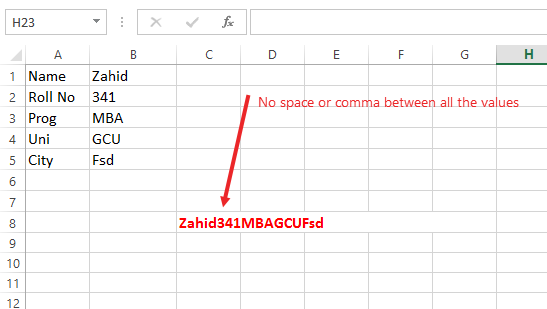
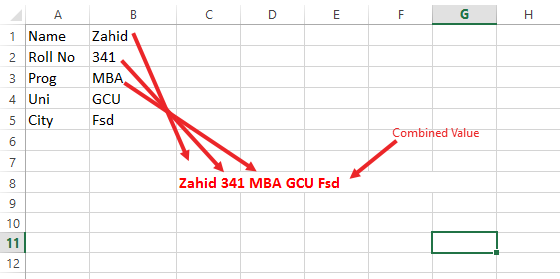
In this article we will learn how to show two or more values in one cell from different cells. Merging or combining different cell is common issue that most of the math or accounting users face in different stages. See below


In above picture, we have combined B1, B2, B3, B4 and B5 cell in one cell having biodata of a student like Name, Roll Number class and etc. In Red Cell the the cell having Formula to collect and show the values. Changing the value in one cell results automatically change in the value in combined cell. This is the topic we are going to discuss today,

There are two way to combine the cells;

  1. Combining by CONCATENATE function
  2. Combining by & Operator

Combining by CONCATENATE function

MS Excel has provided many methods to to this and CONCATENATE is one of them that is widely used in the word by most of the users.

Concatenate is the function that will help us to get our objective. This function merges the values of different cells into one new cell without losing actual data.

The Following is the formula to concatenate the values

  • Combine different cell values without spaces between the values: =CONCATENATE(B1,B2,B3,B4,B5)
This value will combine the values in one cell but there will be no space or comma or any other symbol. See Below


This is not the perfect way to express any value without space or comma. Lets learn How to insert the comma between the values.
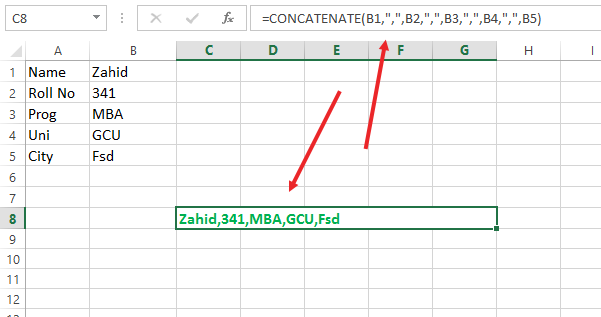
  • Combine different cell values and separate the values with comma: =CONCATENATE(B1,",",B2,",",B3,",",B4,",",B5)
Here we add some more symbol in the formula bar. In above formula you can see there is addition of "," in the formula =CONCATENATE(B1,",",B2,",",B3,",",B4,",",B5)


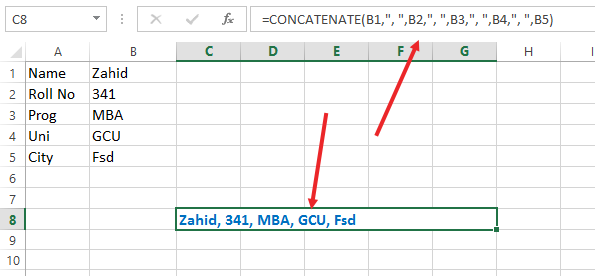
All the values separated by Comma is much better than other,  but still is we insert space formula after comma than it look more attractive and official like this (Zahid, 341, MBA, GCU, Fsd), lets learn how to do this.
  • Combine different cell values into one cell separated by spaces =CONCATENATE(B1,", ",B2,", ",B3,", ",B4,", ",B5)
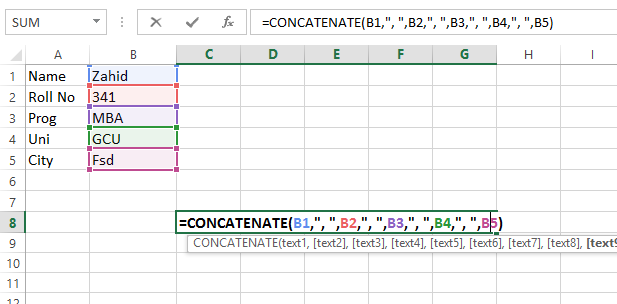
In last formula we have inserted "," in bar to insert comma. but now we will insert  ",  " (Space after comma) after every value =CONCATENATE(B1,", ",B2,", ",B3,", ",B4,", ",B5).

The Following is the actual formula inserted in worksheet


In above picture you can see the formula separated by somma and space with black color and values with different colour. After getting the correct formula and pressing enter you will get the following result


Yes and Done, this is the perfect and official format used every where like (Zahid, 341, MBA, GCU, Fsd)

There is another way to combine or merge the values of different cells into one cell without losing data. That was is to use & Operator in formula bar.

Click Here to learn Combining by & Operator


Read More »

Tuesday, 22 November 2016

Excel Short-Cut Keys


Shorcut keys Compatibility
  • Microsoft Word 97 Viewer
  • Microsoft Office Word 2003
  • Microsoft Word 2002
  • Microsoft Word 2000
  • Microsoft Word 97 Standard Edition
  • Microsoft Word 2013 or higher

    This Post shows most common keyboard shortcuts for MS Excel 2013 or higher. These shortcuts refer to the U.S. keyboard layout. Keys for other layouts might not correspond exactly to the keys on a U.S. keyboard.

    COMMANDKEYSTROKE
    Absolute/relative/mixed referenceF4
    AutoSumAlt =
    BoldCtrl-B
    Border lines offCtrl-Shift _
    Border lines onCtrl-Shift &
    Calculate active sheetShift-F9
    Calculate all worksheetsF9
    CloseCtrl-W
    Collapse selection to active cellShift-Backspace
    Comment insert/editShift-F2
    CopyCtrl-C
    Copy formula from cell aboveCtrl '
    Copy value from cell aboveCtrl-Shift "
    CutCtrl-X
    DateCtrl ;
    Delete rangeCtrl -
    Delete to end of lineCtrl-Del
    Show values/formulasCtrl `
    Edit cellF2
    Enter formula as arrayCtrl-Shift-Enter
    Fill downCtrl-D
    Fill rightCtrl-R
    FindCtrl-F
    Format commas (2 decimal places)Ctrl-Shift !
    Format currency (2 decimal places)Ctrl-Shift $
    Format date (day, month, year)Ctrl-Shift #
    Format exponential number (2 decimal places)Ctrl-Shift ^
    Format general numberCtrl-Shift ~
    Format percentage (0 decimal places)Ctrl-Shift %
    Format time (hour and minute)Ctrl-Shift @
    Formula=
    Function WizardShift-F3
    GoToCtrl-G
    Group row/columnAlt-Shift-Right
    Hard Return in cellAlt-Enter
    Hide selected column(s)Ctrl-0 (zero)
    Hide selected row(s)Ctrl-9
    Insert chart sheetF11
    Insert Function componentsCtrl-Shift-A
    Insert rangeCtrl-Shift-Plus
    Insert worksheetShift-F11
    ItalicsCtrl-I
    Menu barF10
    Move between noncontiguous selectionsCtrl-Alt-Left/Right
    Move left/right one screenAlt-PgUp/PgDn
    Move to beginning of worksheetCtrl-Home
    Move to edge of regionCtrl-Arrow
    Move to end of rowEnd, Enter
    Move to end of worksheetCtrl-End
    Move to next corner of selectionCtrl .
    Move up through a selectionShift-Enter
    Name a range (Insert/Name/Create)Ctrl-Shift-F3
    Name a range (Insert/Name/Define)Ctrl-F3
    NewCtrl-N
    Next windowCtrl-F6
    Next worksheetCtrl-PgUp
    OpenCtrl-O
    Outline symbols display/hideCtrl-8
    PasteCtrl-V
    Paste named range (Insert/Name/Paste)F3
    Previous windowCtrl-Shift-F6
    Previous worksheetCtrl-PgDn
    PrintCtrl-P
    Repeat FindShift-F4
    Repeat/RedoCtrl-Y
    ReplaceCtrl-H
    SaveCtrl-S
    Save AsF12
    Scroll to display active cellCtrl-Backspace
    Select array to which active cell belongsCtrl /
    Select cells directly referred to by selected formulaCtrl [
    Select cells referred to by selected formulaCtrl-Shift {
    Select cells with commentsCtrl-Shift ?
    Select columnCtrl-spacebar
    Select current regionCtrl-Shift *
    Select formulas that directly refer to active cellCtrl ]
    Select formulas that refer to active cellCtrl-Shift }
    Select objects on worksheetCtrl-Shift-spacebar
    Select rowShift-spacebar
    Select to beginning of rowShift-Home
    Select to beginning of worksheetCtrl-Shift-Home
    Select to edge of regionCtrl-Shift-(Arrow)
    Select to end of rowEnd, Shift-Enter
    Select to end of worksheetCtrl-Shift-End
    Select visible cells in selectionAlt ;
    Select worksheetCtrl-A
    Shortcut menuShift-F10
    Spelling and Grammar checkF7
    Strikethrough on/offCtrl-5
    Style boxAlt '
    Tab insertedCtrl-Alt-Tab
    TimeCtrl-Shift-Colon
    UnderlineCtrl-U
    UndoCtrl-Z
    Ungroup row/columnAlt-Shift-Left
    Unhide column(s)Ctrl-Shift )
    Unhide row(s)Ctrl-Shift (
    Read More »