DW Faisalabad New Version

DW Faisalabad New Version
Please Jump to New Version
Showing posts with label Microsoft Office. Show all posts

Saturday, 17 December 2016

Save the Office Document as PDF

Applies To: Excel 2016 Word 2016 PowerPoint 2016 OneNote 2016 Publisher 2016

Save your documents according to your need that works best for you. here come how to save you Office or word file as PDF format


Follow the following steps for do this.


  • Go to File
  • Click Save As
  • Select the designation where you want to save you file.
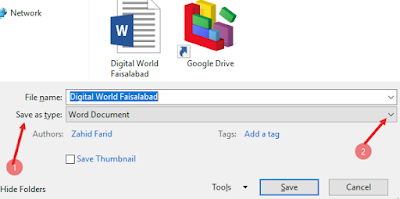
  • Save as Window will appear and now go to Save as type (as show below Arrow 1) click on drop down menu (as show below Arrow 2) and change the file to to PDF File format.
  • Click Save
Now you have successfully save your document in PDF

Save as PDF, Way 2

  1. Go to File
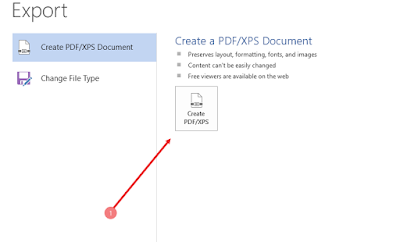
  2. Click Export
  3. Click PDF/XPS Document feature (as show below)

  • Select the designation. you can see the file type is already in PDF mode (as show below)
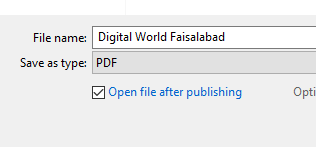
  • Click Publish

Now you have successfully save your document in PDF

Watch All these step in Video


.

Read More »

Wednesday, 23 November 2016

MS Office Basics Shorcut Keys

The keyboard shortcuts that are described in this Help topic refer to the U.S. keyboard layout. Keys on other layouts might not correspond exactly to the keys on a U.S. keyboard.

For keyboard shortcuts in which you press two or more keys simultaneously, the keys to press are separated by a plus sign (+) in Microsoft Office Word 2007 Help. For keyboard shortcuts in which you press one key immediately followed by another key, the keys to press are separated by a comma (,). To print this topic, press TAB to select Show All, press ENTER, and then press CTRL+P.


Display and use windows

To do thisPress
Switch to the next window.ALT+TAB
Switch to the previous window.ALT+SHIFT+TAB
Close the active window.CTRL+W or CTRL+F4
Restore the size of the active window after you maximize it.ALT+F5
Move to a task pane from another pane in the program window (clockwise direction). You may need to press F6 more than once.F6
Move to a task pane from another pane in the program window (counterclockwise direction).SHIFT+F6
When more than one window is open, switch to the next window.CTRL+F6
Switch to the previous window.CTRL+SHIFT+F6
Maximize or restore a selected window.CTRL+F10
Copy a picture of the screen to the Clipboard.PRINT SCREEN
Copy a picture of the selected window to the Clipboard.ALT+PRINT SCREEN

Use dialog boxes
Move from an open dialog box back to the document, for dialog boxes such as Find and Replace that support this behavior.ALT+F6
Move to the next option or option group.TAB
Move to the previous option or option group.SHIFT+TAB
Switch to the next tab in a dialog box.CTRL+TAB
Switch to the previous tab in a dialog box.CTRL+SHIFT+TAB
Move between options in an open drop-down list, or between options in a group of options.Arrow keys
Perform the action assigned to the selected button; select or clear the selected check box.SPACEBAR
Select an option; select or clear a check box.ALT+ the letter underlined in an option
Open a selected drop-down list.ALT+DOWN ARROW
Select an option from a drop-down list.First letter of an option in a drop-down list
Close a selected drop-down list; cancel a command and close a dialog box.ESC
Run the selected command.ENTER
Use edit boxes within dialog boxes

An edit box is a blank in which you type or paste an entry, such as your user name or the path to a folder.


Move to the beginning of the entry.HOME
Move to the end of the entry.END
Move one character to the left or right.LEFT ARROW or RIGHT ARROW
Move one word to the left.CTRL+LEFT ARROW
Move one word to the right.CTRL+RIGHT ARROW
Select or unselect one character to the left.SHIFT+LEFT ARROW
Select or unselect one character to the right.SHIFT+RIGHT ARROW
Select or unselect one word to the left.CTRL+SHIFT+LEFT ARROW
Select or unselect one word to the right.CTRL+SHIFT+RIGHT ARROW
Select from the insertion point to the beginning of the entry.SHIFT+HOME
Select from the insertion point to the end of the entry.SHIFT+END

Use the Open and Save As dialog boxes

Display the Open dialog box.CTRL+F12 or CTRL+O
Display the Save As dialog box.F12
Go to the previous folder.  ALT+1
Up One Levelbutton: Open the folder one level above the open folder.ALT+2
Deletebutton: Delete the selected folder or file.DELETE
Create New Folderbutton: Create a new folder.ALT+4
Viewsbutton: Switch among available folder views.ALT+5
Display a shortcut menu for a selected item such as a folder or file.SHIFT+F10
Move between options or areas in the dialog box.TAB
Open the Look in list.F4 or ALT+I
Update the file list.F5

Undo and redo actions
Cancel an action.ESC
Undo an action.CTRL+Z
Redo or repeat an action.CTRL+Y

Access and use task panes and galleries

Move to a task pane from another pane in the program window. (You may need to press F6 more than once.)F6
When a menu is active, move to a task pane. (You may need to press CTRL+TAB more than once.)CTRL+TAB
When a task pane is active, select the next or previous option in the task pane.TAB or SHIFT+TAB
Display the full set of commands on the task pane menu.CTRL+SPACEBAR
Perform the action assigned to the selected button.SPACEBAR or ENTER
Open a drop-down menu for the selected gallery item.SHIFT+F10
Select the first or last item in a gallery.HOME or END
Scroll up or down in the selected gallery list.PAGE UP or PAGE DOWN
Close a task pane
  1. Press F6 to move to the task pane, if necessary.
  2. Press CTRL+SPACEBAR.
  3. Use the arrow keys to select Close, and then press ENTER.

Access and use smart tags

Display the shortcut menu for the selected item.SHIFT+F10
Display the menu or message for a smart tag or for the AutoCorrect Options button or the Paste options button If more than one smart tag is present, switch to the next smart tag and display its menu or message.ALT+SHIFT+F10
Select the next item on a smart tag menu.DOWN ARROW
Select the previous item on a smart tag menu.UP ARROW
Perform the action for the selected item on a smart tag menu.ENTER
Close the smart tag menu or message.ESC
Tip
  • You can ask to be notified by a sound whenever a smart tag appears. To hear audio cues, you must have a sound card. You must also have Microsoft Office Sounds installed on your computer.
  • If you have access to the World Wide Web, you can download Microsoft Office Sounds from the Microsoft Office Online Web site. After you install the sound files, do the following in Microsoft Office Access 2007, Microsoft Office Excel 2007, Microsoft Office PowerPoint 2007, or Microsoft Office Word 2007:
    1. Press ALT+F to open the menu under the Microsoft Office Button and then press I to open Program Options.
    2. Press A to select Advanced, and then press TAB to move to the Advanced Options for working with Program.
    3. Press ALT+S twice to move to the Provide feedback with soundcheck box, which is under General, and then press SPACEBAR.
    4. Press TAB repeatedly to select OK, and then press ENTER. Note    When you select or clear this check box, the setting affects all Office programs that support sound.

Read More »

MS Outlook Express Short cut keys

Shorcut keys Compatibility
  • Microsoft Outlook Express 6.0
  • Microsoft Outlook Express 5.5
  • Microsoft Outlook Express 5.5 Service Pack 2

This Post shows most common keyboard shortcuts for MS Outlook 2013 or higher. These shortcuts refer to the U.S. keyboard layout. Keys for other layouts might not correspond exactly to the keys on a U.S. keyboard.

Command
Keystroke
Advanced FindCtrl-Shift-F
Bold (Contacts notes section)Ctrl-B
Bold (RichText or HTML mail)Ctrl-B
Check for new mailF9 (Outlook 2003)
Check for new mailF5 (Outlook 2000,2002)
Close a window
Alt-F4
Close a window
Esc
CopyCtrl-C
Create AppointmentCtrl-Shift-A
Create ContactCtrl-Shift-C
Create Flag for follow-upCtrl-Shift-G
Create FolderCtrl-Shift-E
Create Meeting RequestCtrl-Shift-Q
Create MessageCtrl-Shift-M
Create NoteCtrl-Shift-N
Create TaskCtrl-Shift-K
Create Task RequestCtrl-Shift-U
CutCtrl-X
Delete opened itemCtrl-D
Folder List - Collapse selected folder- (Numeric keypad)
Folder List - Expand selected folder* (Numeric keypad)
Folder List - OpenCtrl-Y
Forward selected mailCtrl-F
Go to CalendarCtrl-2
Go to ContactsCtrl-2
Go to MailCtrl-1
Italics (Contacts notes section)Ctrl-I
Italics (RichText or HTML mail)Ctrl-I
Mark item as readCtrl-Q
Mark item as unreadCtrl-U
Move down one screenPgDn
Move to first itemHome
Move to last itemEnd
Move up one screenPgUp
Create new default itemCtrl-N
Open “Find a Contact”F11
Open “Look In”Alt-I
Open selected itemCtrl-O
Open selected itemEnter
PasteCtrl-V
PrintCtrl-P
Read next emailCtrl->
Read previous emailCtrl-<
Redo (within text field)Ctrl-Y
Remove last semi-colon from mail addresseeAlt-K
Reply to selected messageCtrl-R
SaveCtrl-S
Select all itemsCtrl-A
Select to first itemCtrl-Shift-Home
Select to last itemCtrl-Shift-End
Send email messageCtrl-Enter
Spell check open itemF7
Switch to InboxCtrl-Shift-I
Switch to OutboxCtrl-Shift-O
Underline (Contacts notes section)Ctrl-U
Underline (RichText or HTML mail)Ctrl-U
UndoCtrl-Z
Read More »

Tuesday, 22 November 2016

MS Access Short-Cut Keys

Shorcut keys Compatibility
  • Microsoft Office Access 2007
  • Microsoft Office Access 2003
  • Microsoft Access 2002 Standard Editio
This Post shows most common keyboard shortcuts for MS Outlook 2013 or higher. These shortcuts refer to the U.S. keyboard layout. Keys for other layouts might not correspond exactly to the keys on a U.S. keyboard.


COMMANDKEYSTROKE
BoldCtrl-B
BuilderCtrl-F2
CloseCtrl-W
CloseCtrl-F4
CopyCtrl-C
CutCtrl-X
Cut current line and copy to ClipboardCtrl-Y
Cycle through sectionsF6/Shift-F6
Cycle through tab of each object's type (forward)Ctrl-Tab
Cycle through tab of each object's type (backward)Ctrl-Shift-Tab
Database windowF11
Delete current recordCtrl  -
Edit/Navigation mode (toggle)F2
Exit subform and move to next/previous field in next recordCtrl-Tab/Shift-Tab
Extend selection to next/previous recordShift-Dn/Up
FindCtrl-F
Find NextShift-F4
Find PreviousShift-F3
GoToCtrl-G
Insert current dateCtrl  ;
Insert current timeCtrl  :
Insert default valueCtrl-Alt-spacebar
Insert new lineCtrl-Enter
Insert value from same field in previous recordCtrl  '
ItalicsCtrl-I
Menu barF10
Move to beginning/end of multiple-line fieldCtrl-Home/End
Move to current field in first/last record (Navigation mode)Ctrl-Up/Dn
Move to first field in first record (Navigation mode)Ctrl-Home
Move to first/last field in current record (Navigation mode)Home/End
Move to last field in last record (Navigation mode)Ctrl-End
Move to left edge of pageHome or Ctrl-Left
Move to page number/record number boxF5
Move to right edge of pageEnd or Ctrl-Right
New (object)Ctrl-N
New record (add)Ctrl  +
Next windowCtrl-F6
OpenCtrl-O
Open combo boxF4
Open in Design viewCtrl-Enter
PasteCtrl-V
PrintCtrl-P
Property sheetAlt-Enter
Refresh combo boxF9
ReplaceCtrl-H
Requery underlying tables in subformShift-F9
SaveCtrl-S
Save AsF12
Save current recordShift-Enter
Screen left/rightCtrl-PgUp/PgDn
Select/unselect column (Navigation mode)Ctrl-spacebar
Spelling/Grammar checkF7
Switch between upper/lower panesF6
Switch to Form viewF5
Turn on Move modeCtrl-F8
UnderlineCtrl-U
UndoCtrl-Z
Undo previous extensionShift-F8
Zoom boxShift-F2
Read More »

Power Point Short-Cut Keys


Microsoft PowerPoint 2000 Standard Editio

Shorcut keys Compatibility
  • Microsoft PowerPoint 97 Viewer
  • Microsoft Office PowerPoint 2003
  • Microsoft PowerPoint 2002
  • Microsoft PowerPoint 2000
  • Microsoft PowerPoint 2013 or higher

    This Post shows most common keyboard shortcuts for MS Power point 2013 or higher. These shortcuts refer to the U.S. keyboard layout. Keys for other layouts might not correspond exactly to the keys on a U.S. keyboard.


    COMMANDKEYSTROKE
    BoldCtrl-B
    CloseCtrl-W
    CloseCtrl-F4
    CopyCtrl-C
    CutCtrl-X
    FindCtrl-F
    ItalicsCtrl-I
    Menu barF10
    Move to the end of the entryEnd
    New (slide)Ctrl-N
    Next windowCtrl-F6
    OpenCtrl-O
    Outline:  CollapseAlt-Shift -
    Outline:  Demote paragraphAlt-Shift-Right
    Outline:  ExpandAlt-Shift +
    Outline:  Move paragraph downAlt-Shift-Dn
    Outline:  Move paragraph upAlt-Shift-Up
    Outline:  Promote paragraphAlt-Shift-Left
    Outline:  Show All HeadingsAlt-Shift-A
    Outline:  Show heading level 1Alt-Shift-1
    PasteCtrl-V
    PrintCtrl-P
    Repeat FindShift-F4
    Repeat/RedoCtrl-Y
    ReplaceCtrl-H
    SaveCtrl-S
    Select allCtrl-A
    Slide Show:  Begin the slide showF5
    Slide Show:  Black screen show/hideB
    Slide Show:  EndEsc
    Slide Show:  Erase annotationsE
    Slide Show:  Go to next hidden slideH
    Slide Show:  Hide pointer and button alwaysCtrl-L
    Slide Show:  Hide pointer and button temporarilyCtrl-H
    Slide Show:  Mouse pointer to arrowCtrl-A
    Slide Show:  Mouse pointer to penCtrl-P
    Slide Show:  Next slideN
    Slide Show:  Previous slideP
    Slide Show:  Set new timings while rehearsingT
    Slide Show:  Stop/restart automatic slide showS
    Slide Show:  Use mouse-click to advance (rehearsing)M
    Slide Show:  Use original timings (rehearsing)O
    Slide Show:  White screen show/hideW
    Spelling and Grammar checkF7
    Switch to the next presentation windowCtrl-F6
    Switch to the next tab in a dialog boxCtrl-Tab / Ctrl-Page Down
    Switch to the previous presentation windowCtrl-Shift-F6
    Switch to the previous tab in a dialog boxCtrl-Shift-Tab / Ctrl-Page Up
    Turn character formatting on or offNum /
    UnderlineCtrl-U
    UndoCtrl-Z


    Read More »

    Excel Short-Cut Keys


    Shorcut keys Compatibility
    • Microsoft Word 97 Viewer
    • Microsoft Office Word 2003
    • Microsoft Word 2002
    • Microsoft Word 2000
    • Microsoft Word 97 Standard Edition
    • Microsoft Word 2013 or higher

      This Post shows most common keyboard shortcuts for MS Excel 2013 or higher. These shortcuts refer to the U.S. keyboard layout. Keys for other layouts might not correspond exactly to the keys on a U.S. keyboard.

      COMMANDKEYSTROKE
      Absolute/relative/mixed referenceF4
      AutoSumAlt =
      BoldCtrl-B
      Border lines offCtrl-Shift _
      Border lines onCtrl-Shift &
      Calculate active sheetShift-F9
      Calculate all worksheetsF9
      CloseCtrl-W
      Collapse selection to active cellShift-Backspace
      Comment insert/editShift-F2
      CopyCtrl-C
      Copy formula from cell aboveCtrl '
      Copy value from cell aboveCtrl-Shift "
      CutCtrl-X
      DateCtrl ;
      Delete rangeCtrl -
      Delete to end of lineCtrl-Del
      Show values/formulasCtrl `
      Edit cellF2
      Enter formula as arrayCtrl-Shift-Enter
      Fill downCtrl-D
      Fill rightCtrl-R
      FindCtrl-F
      Format commas (2 decimal places)Ctrl-Shift !
      Format currency (2 decimal places)Ctrl-Shift $
      Format date (day, month, year)Ctrl-Shift #
      Format exponential number (2 decimal places)Ctrl-Shift ^
      Format general numberCtrl-Shift ~
      Format percentage (0 decimal places)Ctrl-Shift %
      Format time (hour and minute)Ctrl-Shift @
      Formula=
      Function WizardShift-F3
      GoToCtrl-G
      Group row/columnAlt-Shift-Right
      Hard Return in cellAlt-Enter
      Hide selected column(s)Ctrl-0 (zero)
      Hide selected row(s)Ctrl-9
      Insert chart sheetF11
      Insert Function componentsCtrl-Shift-A
      Insert rangeCtrl-Shift-Plus
      Insert worksheetShift-F11
      ItalicsCtrl-I
      Menu barF10
      Move between noncontiguous selectionsCtrl-Alt-Left/Right
      Move left/right one screenAlt-PgUp/PgDn
      Move to beginning of worksheetCtrl-Home
      Move to edge of regionCtrl-Arrow
      Move to end of rowEnd, Enter
      Move to end of worksheetCtrl-End
      Move to next corner of selectionCtrl .
      Move up through a selectionShift-Enter
      Name a range (Insert/Name/Create)Ctrl-Shift-F3
      Name a range (Insert/Name/Define)Ctrl-F3
      NewCtrl-N
      Next windowCtrl-F6
      Next worksheetCtrl-PgUp
      OpenCtrl-O
      Outline symbols display/hideCtrl-8
      PasteCtrl-V
      Paste named range (Insert/Name/Paste)F3
      Previous windowCtrl-Shift-F6
      Previous worksheetCtrl-PgDn
      PrintCtrl-P
      Repeat FindShift-F4
      Repeat/RedoCtrl-Y
      ReplaceCtrl-H
      SaveCtrl-S
      Save AsF12
      Scroll to display active cellCtrl-Backspace
      Select array to which active cell belongsCtrl /
      Select cells directly referred to by selected formulaCtrl [
      Select cells referred to by selected formulaCtrl-Shift {
      Select cells with commentsCtrl-Shift ?
      Select columnCtrl-spacebar
      Select current regionCtrl-Shift *
      Select formulas that directly refer to active cellCtrl ]
      Select formulas that refer to active cellCtrl-Shift }
      Select objects on worksheetCtrl-Shift-spacebar
      Select rowShift-spacebar
      Select to beginning of rowShift-Home
      Select to beginning of worksheetCtrl-Shift-Home
      Select to edge of regionCtrl-Shift-(Arrow)
      Select to end of rowEnd, Shift-Enter
      Select to end of worksheetCtrl-Shift-End
      Select visible cells in selectionAlt ;
      Select worksheetCtrl-A
      Shortcut menuShift-F10
      Spelling and Grammar checkF7
      Strikethrough on/offCtrl-5
      Style boxAlt '
      Tab insertedCtrl-Alt-Tab
      TimeCtrl-Shift-Colon
      UnderlineCtrl-U
      UndoCtrl-Z
      Ungroup row/columnAlt-Shift-Left
      Unhide column(s)Ctrl-Shift )
      Unhide row(s)Ctrl-Shift (
      Read More »