DW Faisalabad New Version

DW Faisalabad New Version
Please Jump to New Version
Showing posts with label If Then Statement. Show all posts

Wednesday, 12 July 2017

Delete Blank Cells

Below we will look at a program in Excel VBA that deletes blank cells.

Situation:


1. First, we declare two variables of type Integer. One named counter and one named i. We initialize the variable counter with value 0.

Dim counter As Integer, i As Integer
counter = 0
2. Next, we check for each cell whether it is empty or not (<> means not equal to). We are using a loop for this. If not empty, we write the value to column B. The counter holds track of the number of cells that have been copied to column B. Each time we copy a value to column B, we increment counter by 1. This piece of the program looks as follows:

For i = 1 To 10
    If Cells(i, 1).Value <> "" Then
        Cells(counter + 1, 2).Value = Cells(i, 1).Value
        counter = counter + 1
    End If
Next i
Result so far:


3. Finally, we empty Range("A1:A10"), copy the values of column B to column A, and empty Range("B1:B10").

Range("A1:A10").Value = ""
Range("A1:A10").Value = Range("B1:B10").Value
Range("B1:B10") = ""
Result:

.
Read More »

Sum by Color

Below we will look at a program in Excel VBA that sums numbers by color.

Situation:

You have lended money to two twelve people. Some people have given it back (in black) and some still owe you money (red). You want to know how much money you still receive.


1. First, we declare two variables of type Integer. One named toReceive and one named i. We initialize the variable toReceive with value 0.

Dim toReceive As Integer, i As Integer
toReceive = 0
2. Second, we start a For Next loop.

For i = 1 To 12
3. We now check each number and only if the color of the number is red we add the number to toReceive.

If Cells(i, 1).Font.Color = vbRed Then
    toReceive = toReceive + Cells(i, 1).Value
End If
4. Don't forget to close the loop.

Next i
5. Finally, we display the money still to receive. We use the & operator to concatenate (join) two strings. Although toReceive is not a string it works here.

MsgBox "Still to receive " & toReceive & " dollars"
6. Place your macro in a command button and test it.

Result:

.
Read More »

Find Second Highest Value

Below we will look at a program in Excel VBA that finds the second highest value.

Situation:


1. First, we declare two Range objects and two variables of type Double. We call the Range objects rng and cell. One double variable we call highestValue, and one double variable we call secondHighestValue.

Dim rng As Range, cell As Range
Dim highestValue As Double, secondHighestValue As Double
2. We initialize the Range object rng with the selected range and the two Double variables with value 0.

Set rng = Selection
highestValue = 0
secondHighestValue = 0
3. First, we want to find the highest value. We want to check each cell in a randomly selected range (this range can be of any size). In Excel VBA, you can use the For Each Next loop for this. Add the following code lines:

'Find Highest Value
For Each cell In rng
Next cell
Note: rng and cell are randomly chosen here, you can use any names. Remember to refer to these names in the rest of your code. The green line is a comment and is only added here to provide information about this piece of code.

4. We check each cell in this range. If it's higher than highestValue, we write the value to the variable highestValue. Add the following code line to the loop.

If cell.Value > highestValue Then highestValue = cell.Value
Note: the first value is always higher than highestValue because the starting value of highestValue is 0.

5. Second, we want to find the second highest Value. We add another For Each Next loop.

'Find Second Highest Value
For Each cell In rng

Next cell
6. We check each cell in the selected range again. If it's higher than secondHighestValue and lower than highestValue, we write the value to the variable secondHighestValue. Add the following code line to the loop.

If cell.Value > secondHighestValue And cell.Value < highestValue Then secondHighestValue = cell.Value
7. Finally, we display the second highest value using a MsgBox.

MsgBox "Second Highest Value is " & secondHighestValue
8. Place your macro in a command button, select the numbers, and click on the command button.

Result:

.
Read More »

Prime Number Checker

Below we will look at a program in Excel VBA that checks whether a number is a prime number or not.

Before you start: in mathematics, a prime number is a number that has exactly two distinct number divisors: 1 and itself. The smallest twenty-five prime numbers are: 2, 3, 5, 7, 11, 13, 17, 19, 23, 29, 31, 37, 41, 43, 47, 53, 59, 61, 67, 71, 73, 79, 83, 89 and 97. For example, 8 has 1, 2, 4 and 8 as divisors and is not a prime number.

Situation:


1. First, we declare three variables. One Integer variable we call divisors, one Long variable we call number and one Long variable we call i. We use Long variables here because Long variables have larger capacity than Integer variables.

Dim divisors As Integer, number As Long, i As Long
2. We initialize two variables. We initialize the variable divisors with value 0. We use the InputBox function to get a number from the user.

divisors = 0
number = InputBox("Enter a number")


After the user has entered a number, we want to check whether this number is a prime number or not. Remember, a prime number has exactly two distinct number divisors: 1 and itself.

3. We start a For Next loop.

For i = 1 To number
4. Now comes the most important part of the program. To calculate the number of divisors of a number, we use the Mod operator. The Mod operator gives the remainder of a division. So 7 mod 2 would give 1. 7 is divided by 2 (3 times) to give a remainder of 1. Only if "number mod i' equals 0, i is a divisor of number. In this case we want to increment the variable divisors by 1. The macro below does the trick.

If number Mod i = 0 Then
    divisors = divisors + 1
End If
Excel VBA checks this for i = 1, i = 2, i = 3, i = 4 until i = number. Note that i = 1 and i = number always are divisors of number. Only if these numbers are the only divisors of number, the number is a prime number.

5. Don't forget to close the loop.

Next i
6. If divisors equals 2, we display a msgbox saying that the entered number is a prime number. If the number of divisors is higher than 2, we display a msgbox saying that the entered number is not a prime number.

If divisors = 2 Then
    MsgBox number & " is a prime number"
Else
    MsgBox number & " is not a prime number"
End If
7. Test the program.

Result for 104729:

.
Read More »

Tax Rates

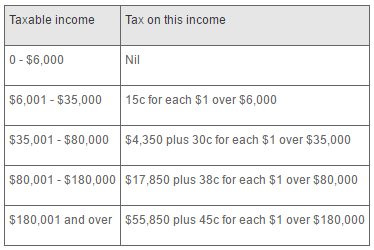
Below we will look at a program in Excel VBA that calculates the tax on an income. The following tax rates apply to individuals who are residents of Australia.


Situation:


1. First, we declare two double variables. One double variable we call income, and one double variable we call tax.

Dim income As Double
Dim tax As Double
2. We initialize the variable income with the value of cell A2 and round it.

income = Round(Range("A2").Value)
3. We place the rounded value into cell A2 again.

Range("A2").Value = income
4. We use the Select Case statement to calculate the tax on an income. Excel VBA uses income to test each subsequent Case statement to see if the code under the Case statement should be executed.

Select Case income
    Case Is >= 180001
        tax = 55850 + 0.45 * (income - 180000)
    Case Is >= 80001
        tax = 17850 + 0.38 * (income - 80000)
    Case Is >= 35001
        tax = 4350 + 0.3 * (income - 35000)
    Case Is >= 6001
        tax = 0.15 * (income - 6000)
    Case Else
        tax = 0
End Select
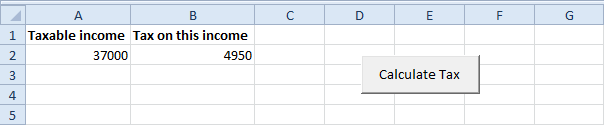
Example: if income is 37000, tax equals 4350 + 0.3 * (37000-35000) = 4350 + 600 = $4950

5. We write the value of the variable tax to cell B2.

Range("B2").Value = tax
6. Place this code in a command button and test it.

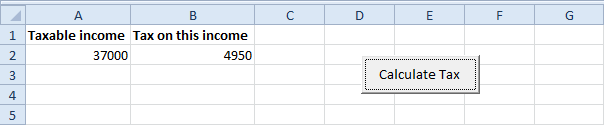
Result:

.
Read More »

Mod Operator

The Mod operator in Excel VBA gives the remainder of a division.

Place a command button on your worksheet and add the following code line:

MsgBox 7 Mod 2
Result when you click the command button on the sheet:


Explanation: 7 is divided by 2 (3 times) to give a remainder of 1.

Code line:

MsgBox 8 Mod 2
Result:


Explanation: 8 is divided by 2 (exactly 4 times) to give a remainder of 0.

For a practical example of the mod operator, see our example program Prime Number Checker..
Read More »

Select Case

Instead of multiple If Then statements in Excel VBA, you can use the Select Case structure.

Situation:


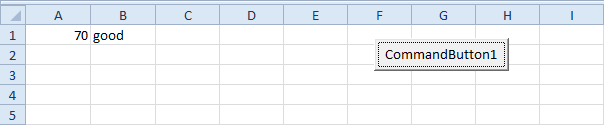
Place a command button on your worksheet and add the following code lines:

1. First, declare two variables. One variable of type Integer named score and one variable of type String named result.
Dim score As Integer, result As String
2. We initialize the variable score with the value of cell A1.

score = Range("A1").Value
3. Add the Select Case structure.

Select Case score
    Case Is >= 80
        result = "very good"
    Case Is >= 70
        result = "good"
    Case Is >= 60
        result = "sufficient"
    Case Else
        result = "insufficient"
End Select
Explanation: Excel VBA uses the value of the variable score to test each subsequent Case statement to see if the code under the Case statement should be executed.

4. Write the value of the variable result to cell B1.

Range("B1").Value = result
5. Test the program.

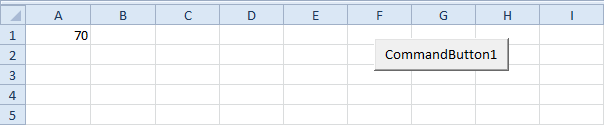
Result when you click the command button on the sheet:


Note: Excel VBA executes the code under the second Case statement for all values greater than or equal to 70 and less than 80..
Read More »

Logical Operators

Logical Operator And  |  Logical Operator Or  |  Logical Operator Not

The three most used logical operators in Excel VBA are: And, Or and Not. As always, we will use easy examples to make things more clear.

Logical Operator And

Place a command button on your worksheet and add the following code lines:

Dim score1 As Integer, score2 As Integer, result As String

score1 = Range("A1").Value
score2 = Range("B1").Value

If score1 >= 60 And score2 > 1 Then
    result = "pass"
Else
    result = "fail"
End If

Range("C1").Value = result
Explanation: if score1 is greater than or equal to 60 and score2 is greater than 1, Excel VBA returns pass, else Excel VBA returns fail.

Result when you click the command button on the sheet:


Conclusion: Excel VBA returns fail because score2 is not greater than 1.

Logical Operator Or

Place a command button on your worksheet and add the following code lines:

Dim score1 As Integer, score2 As Integer, result As String

score1 = Range("A1").Value
score2 = Range("B1").Value

If score1 >= 60 Or score2 > 1 Then
    result = "pass"
Else
    result = "fail"
End If

Range("C1").Value = result
Explanation: if score1 is greater than or equal to 60 or score2 is greater than 1, Excel VBA returns pass, else Excel VBA returns fail.

Result when you click the command button on the sheet:


Conclusion: Excel VBA returns pass because score1 is greater than or equal to 60.

Logical Operator Not

Place a command button on your worksheet and add the following code lines:

Dim score1 As Integer, score2 As Integer, result As String

score1 = Range("A1").Value
score2 = Range("B1").Value

If score1 >= 60 And Not score2 = 1 Then
    result = "pass"
Else
    result = "fail"
End If

Range("C1").Value = result
Explanation: if score1 is greater than or equal to 60 and score2 is not equal to 1, Excel VBA returns pass, else Excel VBA returns fail.

Result when you click the command button on the sheet:


Conclusion: Excel VBA returns fail because score2 is equal to 1..
Read More »

If Then Statement

If Then Statement  |  Else Statement

Use the If Then statement in Excel VBA to execute code lines if a specific condition is met.

If Then Statement

Place a command button on your worksheet and add the following code lines:

Dim score As Integer, result As String
score = Range("A1").Value

If score >= 60 Then result = "pass"

Range("B1").Value = result


Explanation: if score is greater than or equal to 60, Excel VBA returns pass.

Result when you click the command button on the sheet:


Note: if score is less than 60, Excel VBA places the value of the empty variable result into cell B1.

Else Statement

Place a command button on your worksheet and add the following code lines:

Dim score As Integer, result As String
score = Range("A1").Value

If score >= 60 Then
    result = "pass"
Else
    result = "fail"
End If

Range("B1").Value = result
Explanation: if score is greater than or equal to 60, Excel VBA returns pass, else Excel VBA returns fail.

Result when you click the command button on the sheet:


Note: only if you have one code line after Then and no Else statement, it is allowed to place a code line directly after Then and to omit (leave out) End If (first example). Otherwise start a new line after the words Then and Else and end with End If (second example)..
Read More »