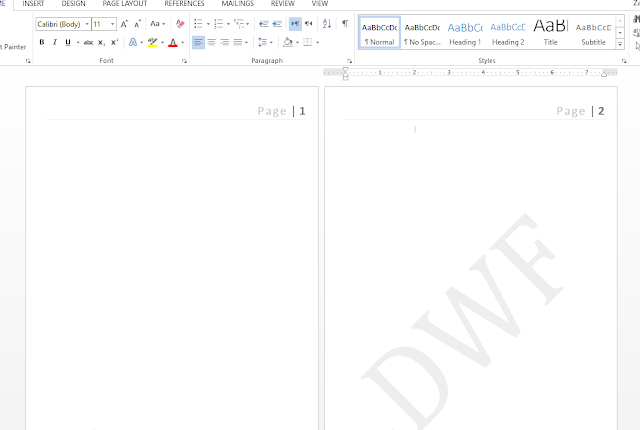
Watermark is a picture, logo, text and anything added behind your text on page. companies use this feature to minimize the chances of violation of it copyrighted material.
You can add MS Word customized and predefined watermarks (Confidential, draft, copy etc)
Lets see how to insert watermark step by step.


Read More »
You can add MS Word customized and predefined watermarks (Confidential, draft, copy etc)
Lets see how to insert watermark step by step.
Insert Draft, Sample, Do Not Copy or confidential watermark
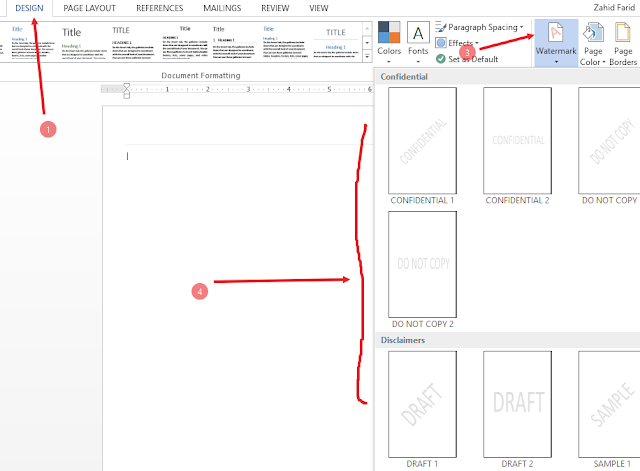
- open Word Application and Go to Design tab
- In Page background group click on watermark icon
- A list of watermarks will appear below, Select your favorite watermarks (Confidential, Don't Copy, Draft and Sample), click on it and you will see watermark on page.
See below
Add Picture watermark
To add a picture or logo, follow these steps.
- Open Word Application and Go to Design tab
- In Page background group click on watermark icon
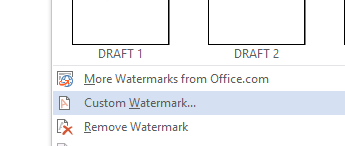
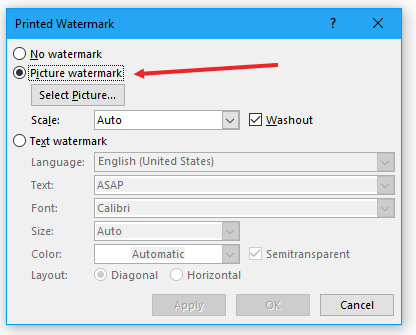
- A list of watermarks will appear below, at the end of it, you will find Custom Watermark, Click on it
- After click, you will face a popup window
- at the top CHECK the Picture watermark and click the below Select Picture button to add the picture.
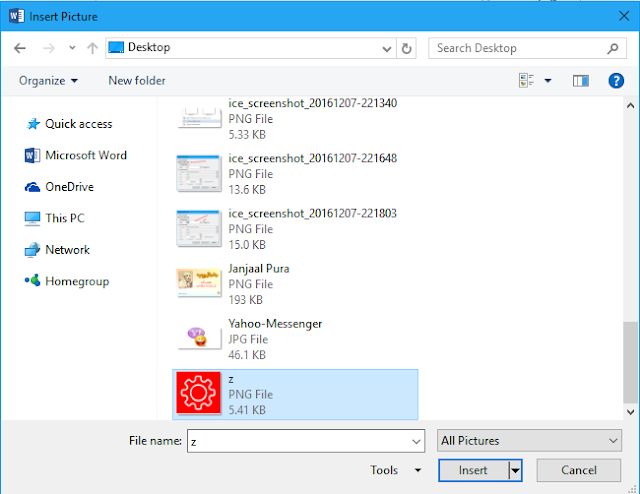
- New window will open from which you will find your picture or logo. see below
- select your picture and click Insert.
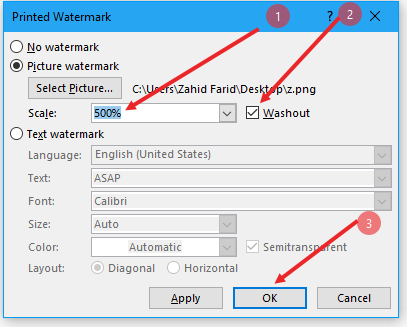
- Now after selecting, adjust the Scale of picture, mostly people go for 500% from drop down menu (as shown in picture) and check washout option to make watermark dim. see below
- Click OK
Add Customized Text watermark
To add your customized Text (i.e. Company name, Abbreviation, any other text etx), follow these steps
- Open Word, Go to Design tab
- Go to background group and Click on Watermark icon
- Click on Custom Watermark at the end of watermark menu box
- A news window will appear on which you will find;
- No watermark
- Picture watermark, and
- Text watermark, Check the TEXT watermark
- As you click this option, all the below features will be immediately active, Select the language.
- In Text Field (remove ASAP) write your own text,
- Select your favorite font, size and colour
- At the end choose whether you want to display your text horizontally or diagonally.
- Then click APPLY and then OK.
You can customize it according to your requirements. Learn how to Delete Watermark
Customize the watermark
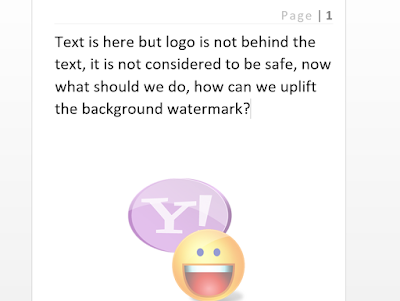
If we have a few lines on paper and our water mark is vertically centered, one can easily remove our logo and use our text or anything else. see the example below
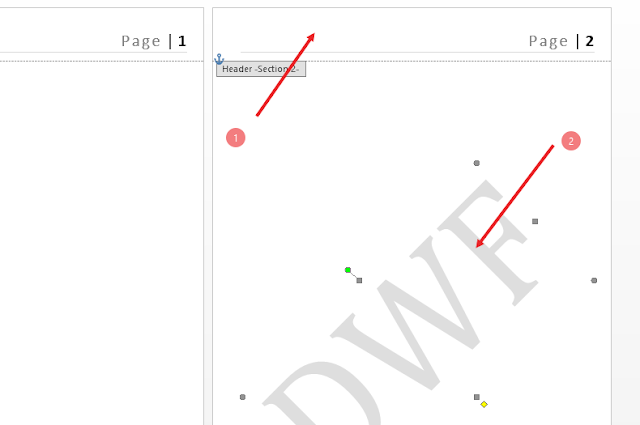
To uplift the logo, just double click on header or footer area to activate it. when header/footer will be activate, watermark will appear in actual colour or form. click the watermark and drag it to your desired position, you can change the size of the watermark. When done, double click on the empty space on the page to be done.